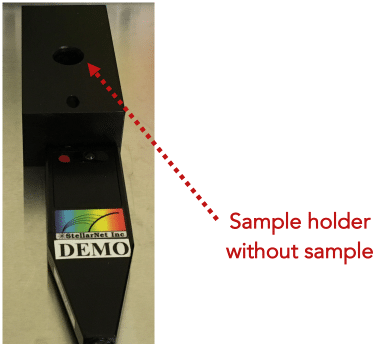
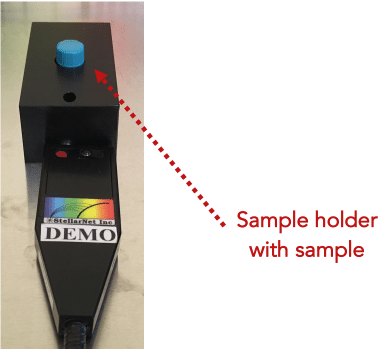
Load your sample vial may be loaded into the sample holder.
Turn on the computer. Open the StellarNet software by double clicking on the desktop icon StellarPro to open the application.
When you first open the software, you should see a screen similar to the one below:
In the side navigation bar, select Raman icon .
Click on the SCOPE tab in the Graph window. This will show you the number of counts (photons) the detector receives. You should see a spectrum of counts versus wavelength. This is where you will optimize your curve.
In the Acquire toolbar, adjust the integration time and other device parameters based on your sample.
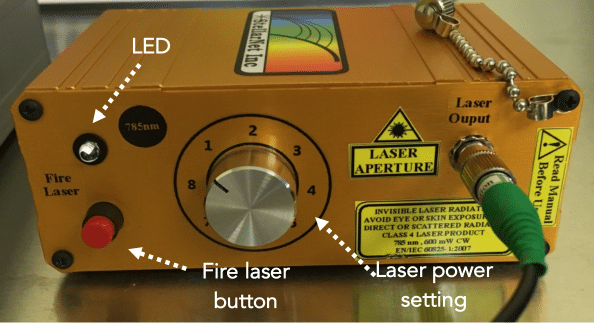
Turn the laser power to the lowest setting for your first trial spectrum. You should always start with the laser power set to the lowest value and then slowly increase it.
Press and hold the left front panel button (marked ‘Fire Laser’) to fire the laser. The LED bulb next to this button will light up red, indicating that the laser is in operation. You should see a spectrum appear on the computer screen in the StellarPro software.
While still holding the Fire Laser button, click on the Capture button to collect the displayed Raman spectrum. You can then release the Fire Laser button.
Adjust your integration time and laser power setting until you achieve the highest count spectrum in the SCOPE mode without burning the sample.
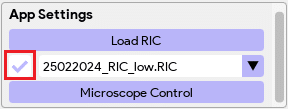
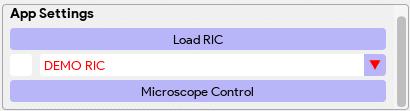
Load RIC file, if needed: Raman Intensity Correction ensures accurate and reproducible spectra by compensating for variations in the spectrometer’s optical response. Make sure the RIC file is loaded after setting the desired integration time to avoid photon count saturation in the scope graph. To load the provided RIC, left-click on the ‘Load RIC‘ button in the App Settings, and then select the RIC for the spectrometer. Note: Please make sure “g4” is selected for gain in the Device Settings if RIC is being used.
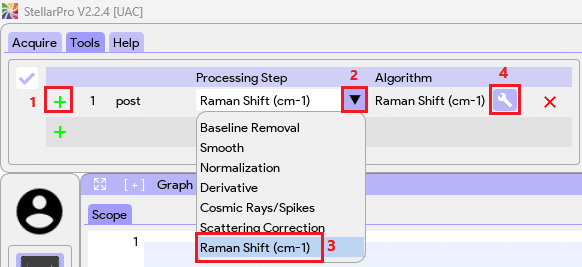
Turn on Raman Shift, if needed: In the Tools toolbar, click on to add the processing step. Then, in the processing step column, select Raman Shift (cm⁻¹) from the dropdown list. After that, click on and enter the excitation wavelength for the laser (xxx nm). Click ‘Set’. You should see a spectrum of counts versus Raman shifts (cm⁻¹).
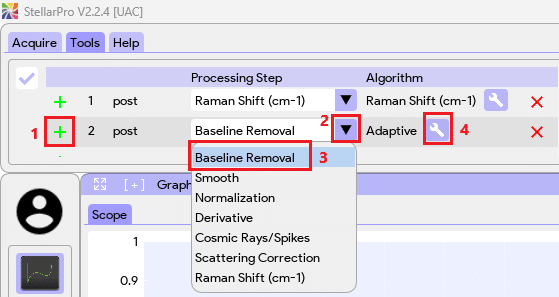
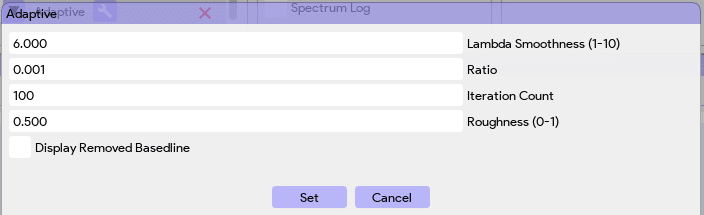
Turn on Baseline Removal, if needed: In the Tools toolbar, click on to add the processing step. Then, in the processing step column, select Baseline Removal from the dropdown list. The best baseline removal setting will be used by default. The user can edit the baseline settings by clicking on and then clicking ‘Set’ to confirm the settings.
You can enable or disable Raman intensity correction by clicking the checkbox next to the loaded RIC file. You can also load multiple RIC files for the same spectrometer.

 to open the application.
 .
.


 to add the processing step. Then, in the processing step column, select Raman Shift (cm⁻¹) from the dropdown list. After that, click on
 and enter the excitation wavelength for the laser (xxx nm). Click ‘Set’. You should see a spectrum of counts versus Raman shifts (cm⁻¹).


 to open the application.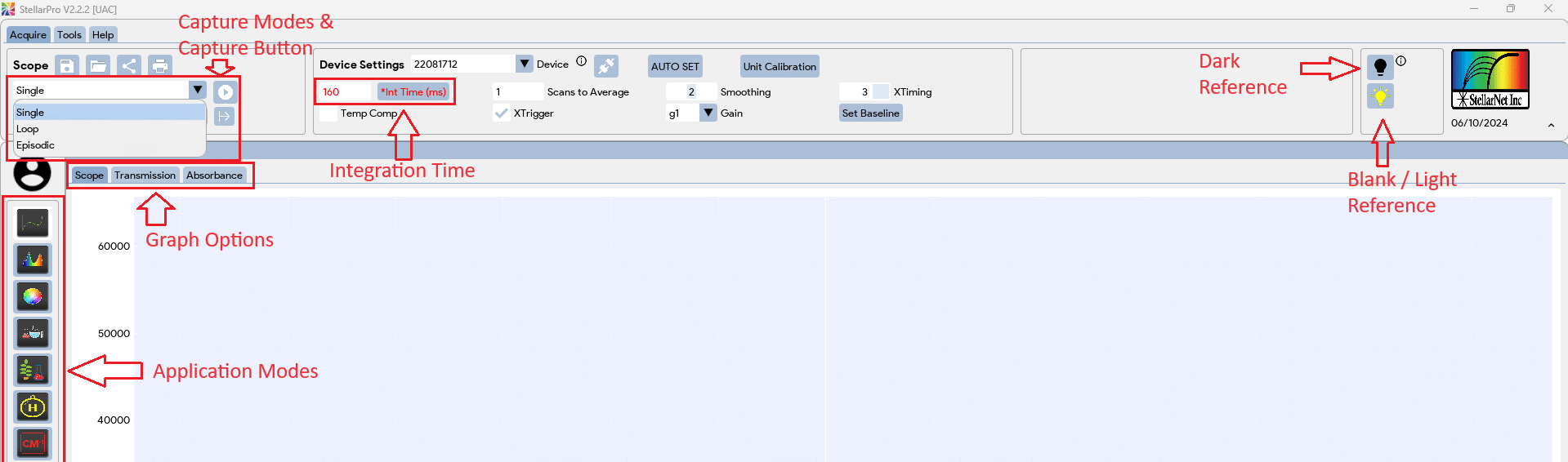
 .
.

 to add the processing step. Then, in the processing step column, select Raman Shift (cm⁻¹) from the dropdown list. After that, click on
 and enter the excitation wavelength for the laser (xxx nm). Click ‘Set’. You should see a spectrum of counts versus Raman shifts (cm⁻¹).