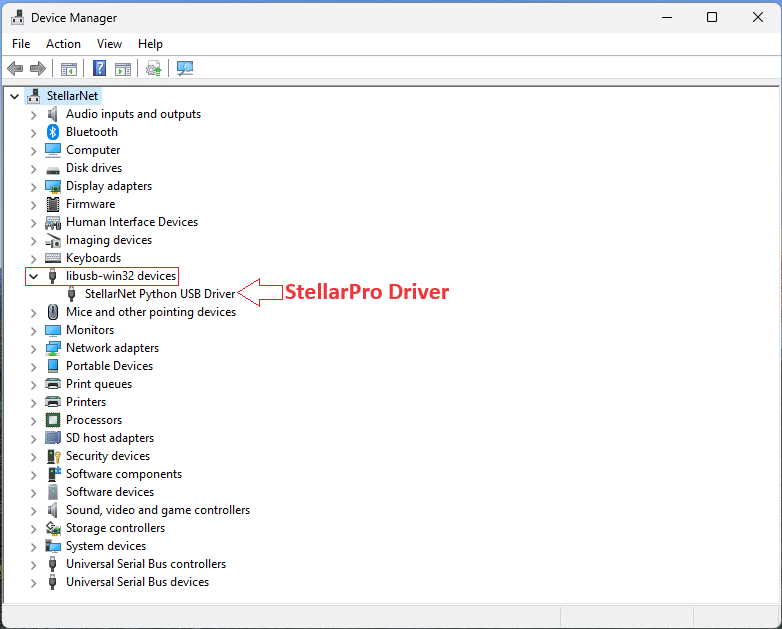
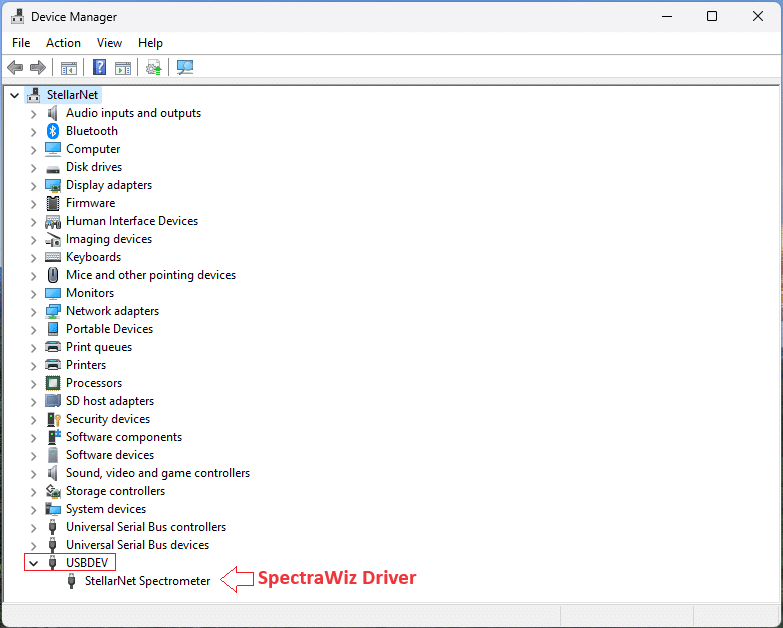
StellarPro and SpectraWiz/Pro-Tools are running two different drivers. StellarPro is using the ‘StellarNet Python USB Driver’, while SpectraWiz/Pro-Tools is using ‘USBDEV > StellarNet spectrometer’.
Automatic Driver Switching (Recommended)
To simplify driver switching, StellarNet provides an automated utility called StellarNet-Driver-Switcher.exe that allows users to switch between the StellarPro and SpectraWiz drivers based on the selected option. The tool performs all required driver removal and installation steps automatically and requires UAC (Administrator) permission when launched.
- Make sure the spectrometer is connected to the computer.
- Double-click to run StellarNet-Driver-Switcher.exe
- Select your desired driver option: StellarPro Driver (i.e. Python-SDK, Universal-SDK) OR SpectraWiz Driver (i.e. swdll)
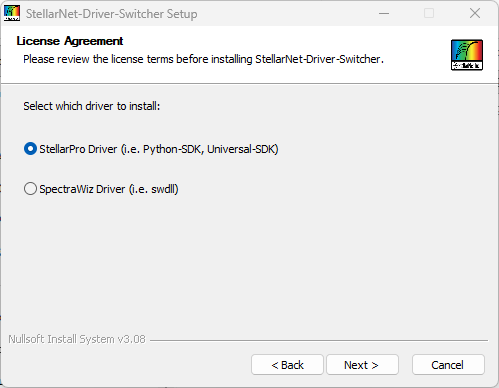
- Click Next >
- Click Install and follow the prompts to complete the driver switching process.
Manual Driver Switching
Note: Ensure that “SW Drivers” are installed using the “StellarNet Inc Software Installer Setup.exe” before proceeding with the procedure below to switch drivers between StellarPro and SpectraWiz/Pro-Tools.
From ‘StellarNet Python USB Driver’ to ‘USBDEV > StellarNet spectrometer’:
- Go to “Device Manager” (search for “Device Manager” in the Start menu).
- Find “libusb-win32 devices” and click on the dropdown arrow.
- In that dropdown, right-click “StellarNet Python USB Driver”.
- Click “Uninstall device”.
- In the “Uninstall Device” popup window, check the box for “Delete the driver software for this device” or “attempt to remove the driver for this device”, then click “Uninstall”.
- Unplug and re-plug the spectrometer.
- In Device Manager, you should now see “USBDEV > StellarNet spectrometer” listed instead of “libusb-win32 devices > StellarNet Python USB Driver” for the SpectraWiz/Pro-Tools driver.
- Right-click on SpectraWiz and select “Run as Administrator” to start the program.
From ‘USBDEV > StellarNet spectrometer’ to ‘StellarNet Python USB Driver’:
- Navigate to the folder “C:\Program Files\StellarNet\StellarPro”.
- Right-click on “InstallDriver.exe” and select “Run as Administrator” to run the driver. A popup window “Device Driver Installation Wizard” will appear.
- In the popup window, click “Next>” and then you should see “Ready to use” in the Status column. Click “Finish” to close this window.
- Unplug and re-plug the spectrometer.
- Go to “Device Manager” (search for “Device Manager” in the Start menu).
- In Device Manager, you should now see “libusb-win32 devices > StellarNet Python USB Driver” listed instead of “USBDEV > StellarNet spectrometer” for the StellarPro driver.

- Right-click on StellarPro and select “Run as Administrator” to start the program.